
User Documentation
Import from Cubox
Use Cubox import when your highlights are stored in Cubox and you want to move them into Acorny.
Cubox does not upload directly to Acorny. First export a Cubox JSON file with Cubox Exporter, then upload that JSON file on the Acorny import page.
Before using Cubox Exporter, enable the Cubox API extension and copy the API value it provides.
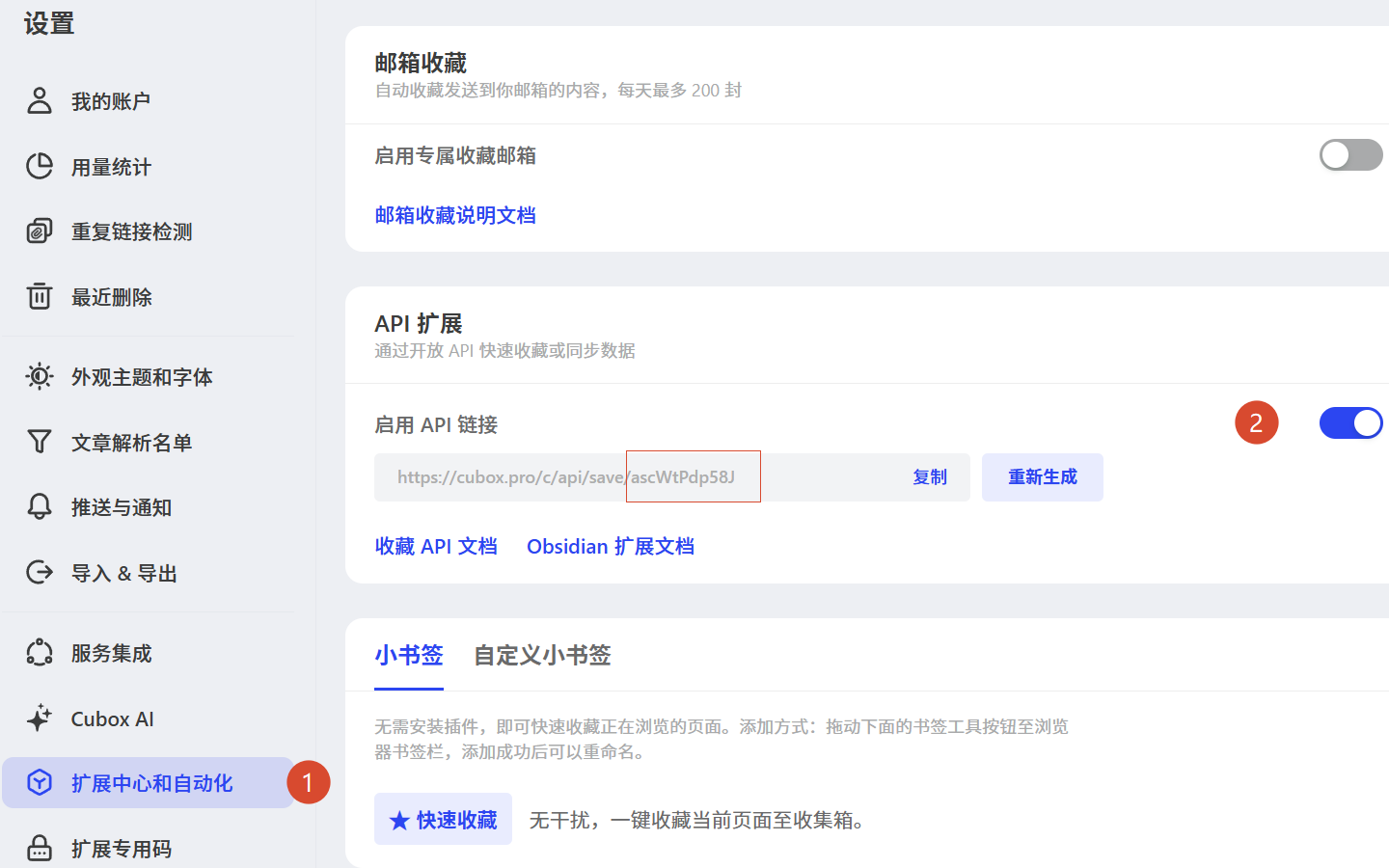
Export from Cubox
Section titled “Export from Cubox”- Download Cubox Exporter:
- Open Cubox Exporter on your computer.
- Follow the exporter instructions to sign in or provide the Cubox access information it requires.
- Export your Cubox data as JSON.
- Keep the generated JSON file. It should contain articles and their nested highlights.
Do not upload a random Cubox backup or browser download. Acorny expects the JSON shape produced by Cubox Exporter: source: "cubox" with an articles array.
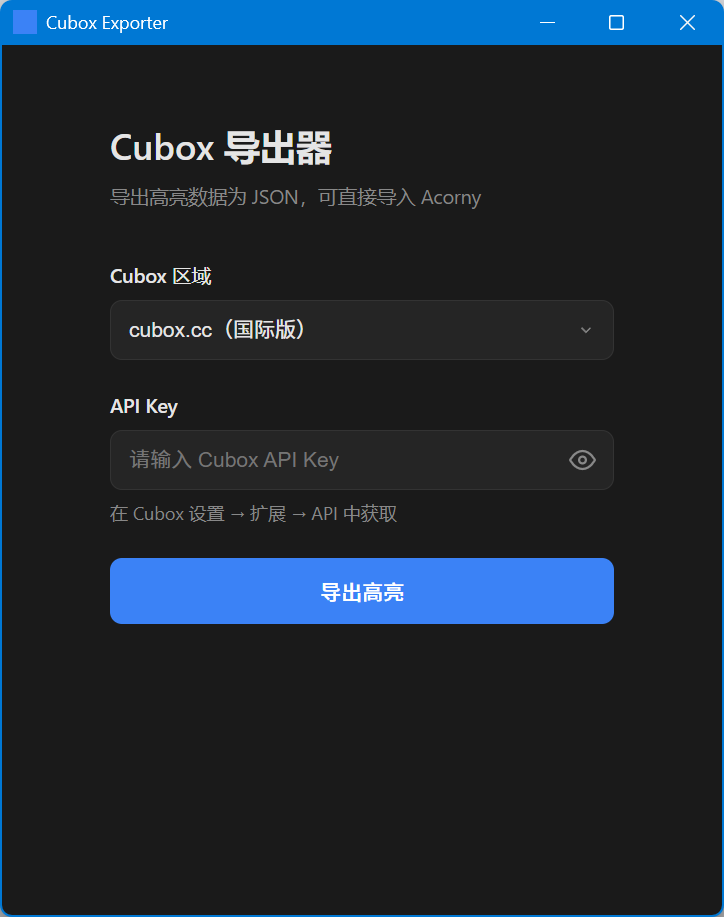
Import into Acorny
Section titled “Import into Acorny”- Open Acorny, then go to Import.
- Choose Upload File.
- Set Source type to Cubox JSON.
- Upload the JSON file generated by Cubox Exporter.
- Review the preview counts and sample records.
- Choose Confirm import.
Acorny imports each non-empty Cubox highlight as a highlight record. It preserves article title, source URL, article tags, highlight note, Cubox article ID, Cubox highlight ID, Cubox highlight URL, domain, color, and created time when the export contains those fields.
What transfers
Section titled “What transfers”Cubox import can preserve:
- Highlight text
- Article title
- Source URL
- Domain
- Article tags
- Highlight note
- Cubox article ID
- Cubox highlight ID
- Cubox highlight URL
- Highlight color
- Created time
This makes Cubox import useful for readers who used Cubox as a web annotation library and want those passages to become reviewable in Acorny.
What does not transfer
Section titled “What does not transfer”Acorny does not import Cubox account settings, subscription state, reading progress, or every Cubox list view. It imports the highlight records that Cubox Exporter writes into the JSON file.
If a Cubox article has no highlight text, it may be a bookmark rather than review material.
Empty highlights
Section titled “Empty highlights”If a Cubox export contains an empty highlight, Acorny skips that item so your library only contains reviewable text.
Preview checks
Section titled “Preview checks”Before confirming the import, inspect the preview:
- Confirm the article title is recognizable.
- Confirm the highlight text is not empty.
- Confirm notes and tags appear when you expect them.
- Confirm the import count is close to the number of Cubox highlights you exported.
If import fails
Section titled “If import fails”If Acorny says the format is unsupported, confirm that the file came from Cubox Exporter and was not manually edited. If the exporter cannot run in your environment, use the Gitee mirror link above or retry from another computer.
If the JSON file is very large, try exporting a smaller Cubox set first. A small successful import is easier to inspect than a full-library import with thousands of records.