
User Documentation
Import and sync from Moon+ Reader
Use Moon+ Reader with Acorny in two different ways:
- One-time import: upload existing Moon+ Reader export files into Acorny.
- Readwise sync: configure Moon+ Reader’s Readwise settings to send new highlights to Acorny.
Moon+ Reader sync is set up inside Moon+ Reader. In Acorny, you only create an Import API token and copy the Readwise URL that Moon+ Reader needs.
When to choose import vs sync
Section titled “When to choose import vs sync”Use file import for your existing library. Use Readwise-compatible sync after that if you continue reading in Moon+ Reader and want new highlights to arrive automatically.
Do not use both paths repeatedly for the same small set of test highlights unless you are checking how duplicates are handled. Acorny uses available details to avoid duplicates, but cleaner imports are easier to inspect.
One-time import
Section titled “One-time import”Use one-time import when you already have Moon+ Reader highlights and want to migrate them into Acorny.
Export from Moon+ Reader
Section titled “Export from Moon+ Reader”Supported inputs:
- TXT paste for a single-book Moon+ Reader text export
.mrexptexport files.mrstdbackup archives.mrprobackup archives
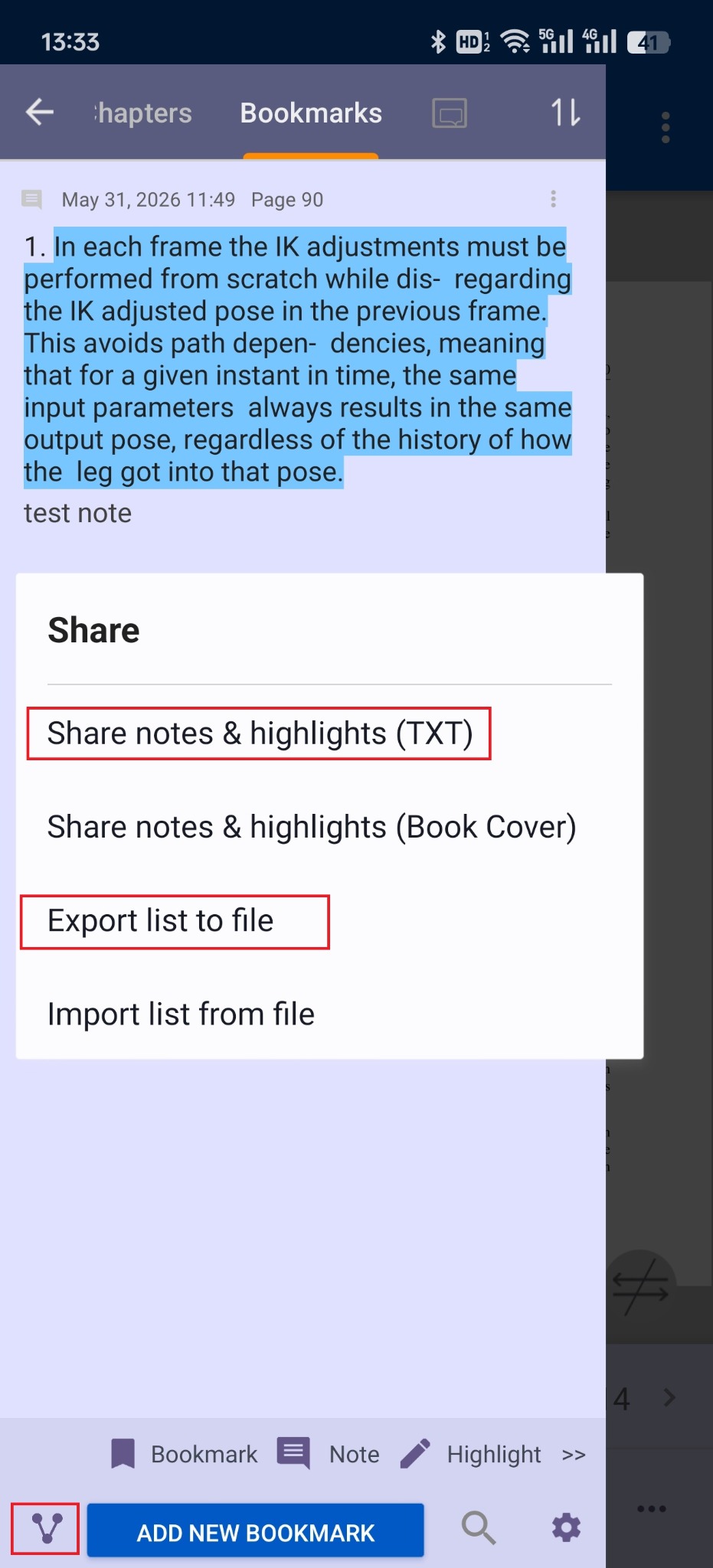
For a single-book TXT export, open the Moon+ Reader bookmarks view and use the share menu to export notes and highlights.
Import into Acorny
Section titled “Import into Acorny”- Open Acorny, then go to Import.
- Choose Upload File.
- Set Source type to Moon+ Reader.
- Pick the matching Moon+ Reader input mode:
- Paste TXT
- Upload
.mrexpt - Upload backup (
.mrstd,.mrpro)
- Preview the import.
- Choose Confirm import.
What transfers
Section titled “What transfers”Moon+ Reader imports can preserve:
- Highlight text
- Book title
- Author when present
- Chapter or reading position when present
- Notes attached to highlights
- Backup details Acorny can use to recognize duplicates
- Created date when the export provides one
For .mrexpt and backup imports, Acorny can use details such as chapter, position, and backup information to avoid duplicates across TXT, .mrexpt, and backup imports.
If a Moon+ Reader highlight already exists in Acorny but its note is empty, a later Moon+ Reader import can fill in the missing note when Acorny can safely match the highlights.
What does not transfer
Section titled “What does not transfer”Moon+ Reader import does not transfer the full ebook file, app theme, reading progress, library folders, or every Moon+ Reader setting. Backup files can contain more detail than TXT exports, so use .mrexpt, .mrstd, or .mrpro when you want a more complete import.
Readwise-compatible sync from Moon+ Reader
Section titled “Readwise-compatible sync from Moon+ Reader”Use this sync option when you keep reading in Moon+ Reader and want future highlights to appear in Acorny without manually uploading files each time.
Set up sync
Section titled “Set up sync”- Open Acorny.
- Go to Settings.
- Find Import API tokens.
- Create a token named
Moon+ Reader. - Copy the token immediately. It is only shown once.
- Copy the Moon+ Reader Readwise URL shown in the same Settings section. It ends with
/api/v2/highlights/. - Open Moon+ Reader.
- Open Moon+ Reader’s Readwise sync settings.
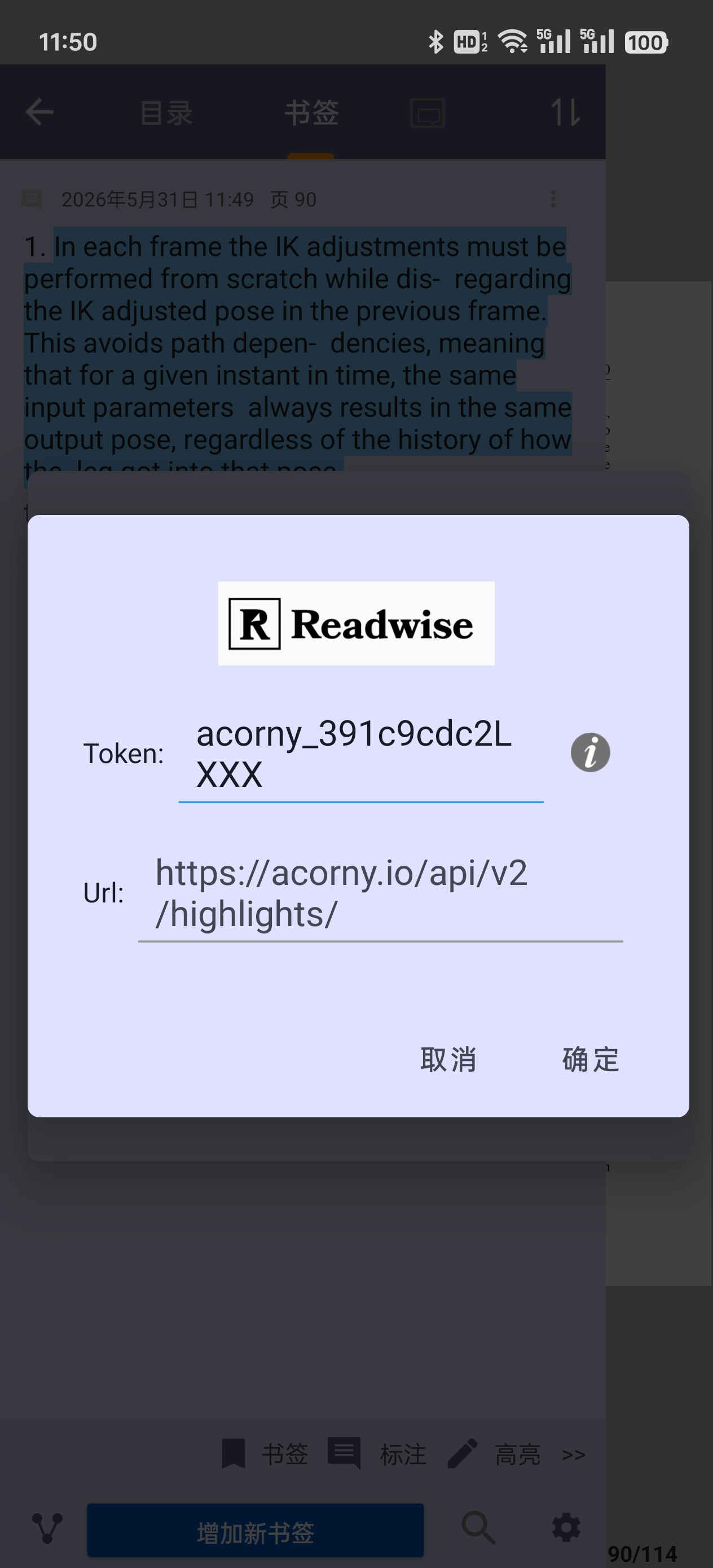
- Paste the Acorny URL into the Readwise URL field.
- Paste the Acorny token into the Token field.
- Trigger Moon+ Reader’s Readwise sync.
Moon+ Reader sends highlights to Acorny through its Readwise sync feature. The Acorny token authorizes new highlights to be added to your account.
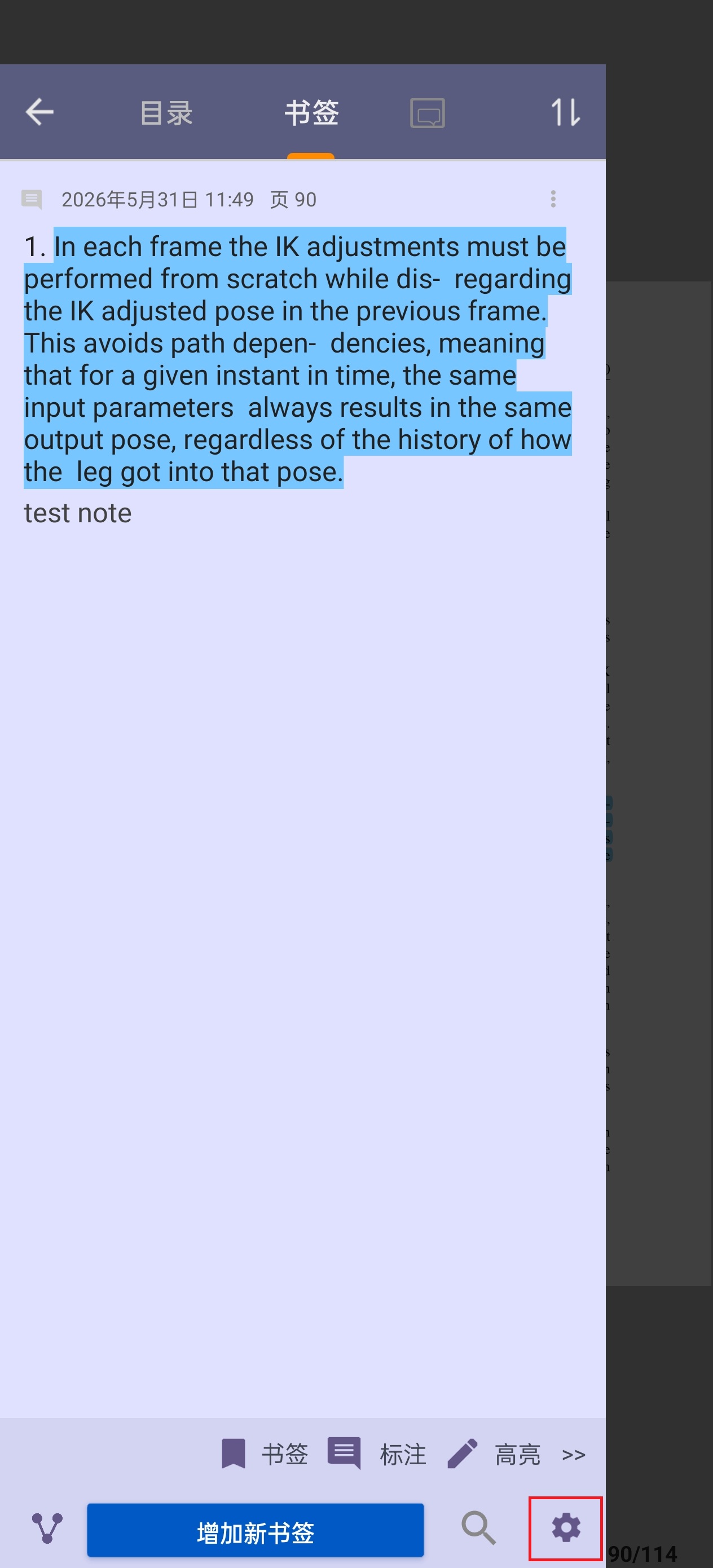
In Moon+ Reader, start from the bookmarks screen and open the settings button.
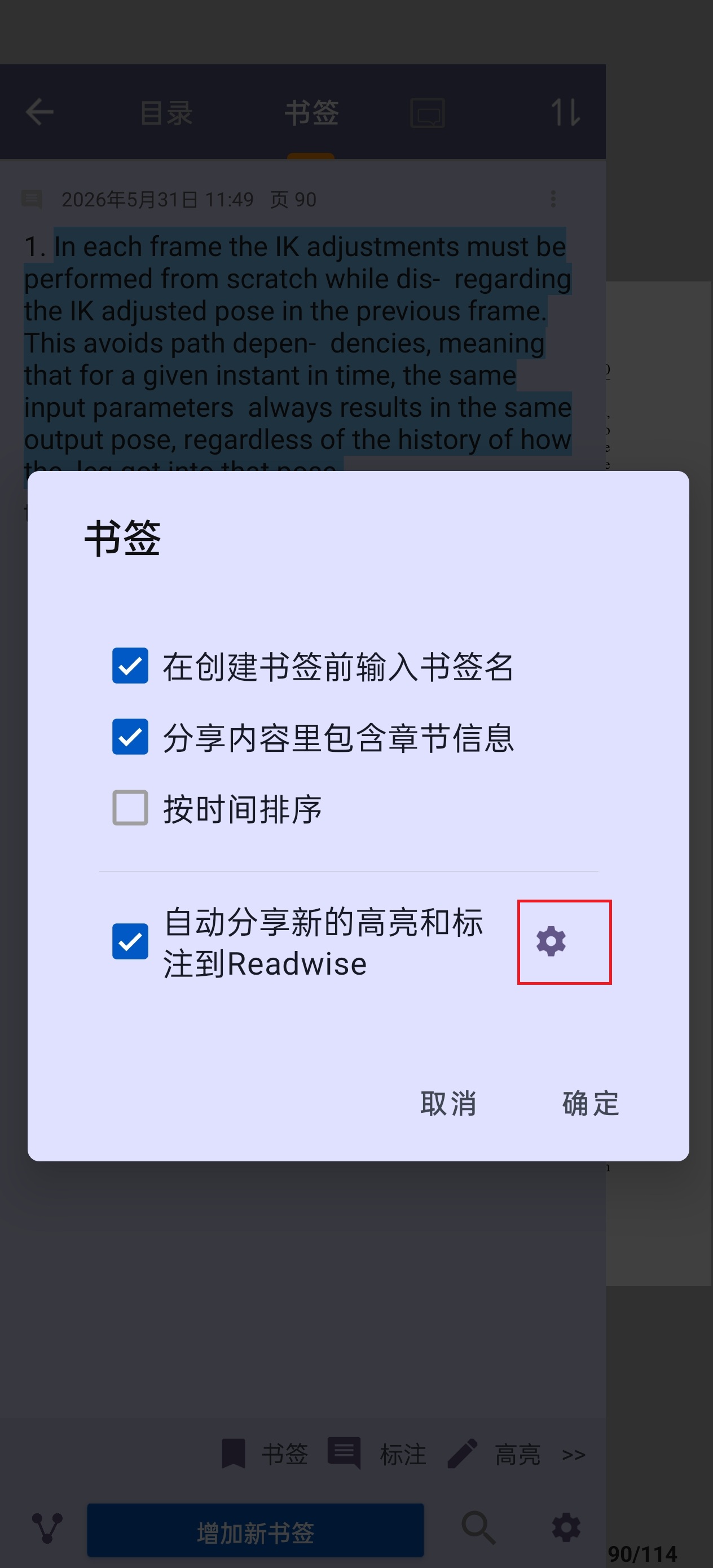
Enable the option that automatically shares new highlights and notes to Readwise, then open its settings.
Paste the Acorny token and Readwise URL into the Readwise settings dialog.
Token safety
Section titled “Token safety”Import API tokens can create highlights in your Acorny account. Store them like passwords. If a token is exposed, revoke it in Settings and create a new one.
Troubleshooting sync
Section titled “Troubleshooting sync”If Moon+ Reader reports an authentication failure, create a fresh Import API token and make sure the Token field contains the Acorny token, not your Acorny login password.
If Moon+ Reader cannot connect, confirm that the Readwise URL includes /api/v2/highlights/ and starts with the same Acorny website address you use in the browser.